Company sign-in
Screenshots of version 0.5.0, running on a new instance with the sample items from the repository. The people in them are sample accounts, and the usage counts are simulated. The identity provider in them is a stand-in made for tests.
Sign-in methods in one place
In Admin › Settings › Authentication, root sees how people sign in: a password, each identity provider and two-factor. Once a provider is on, root can limit password sign-in to roots, and root keeps its password either way, so a broken provider can't lock everyone out.
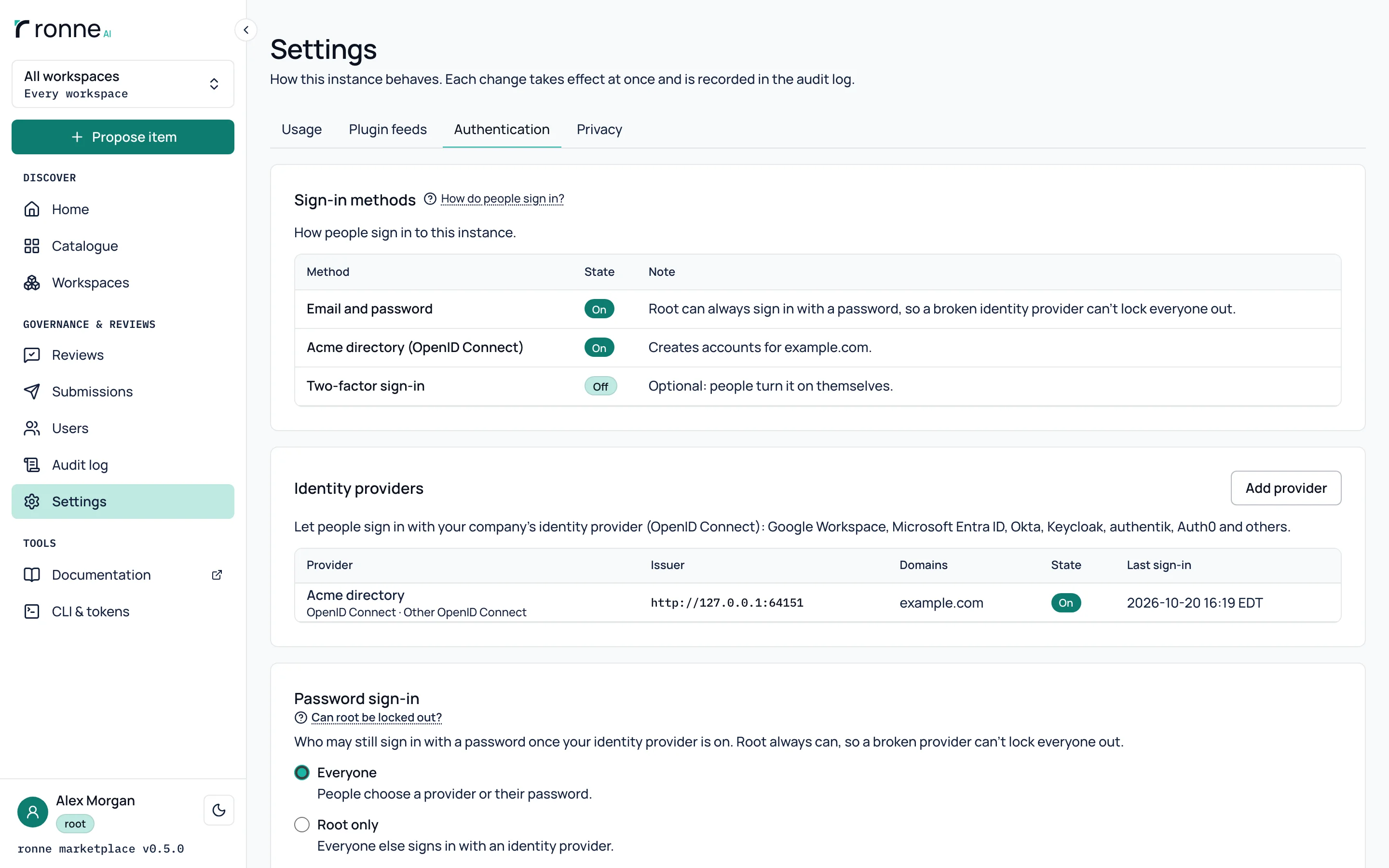
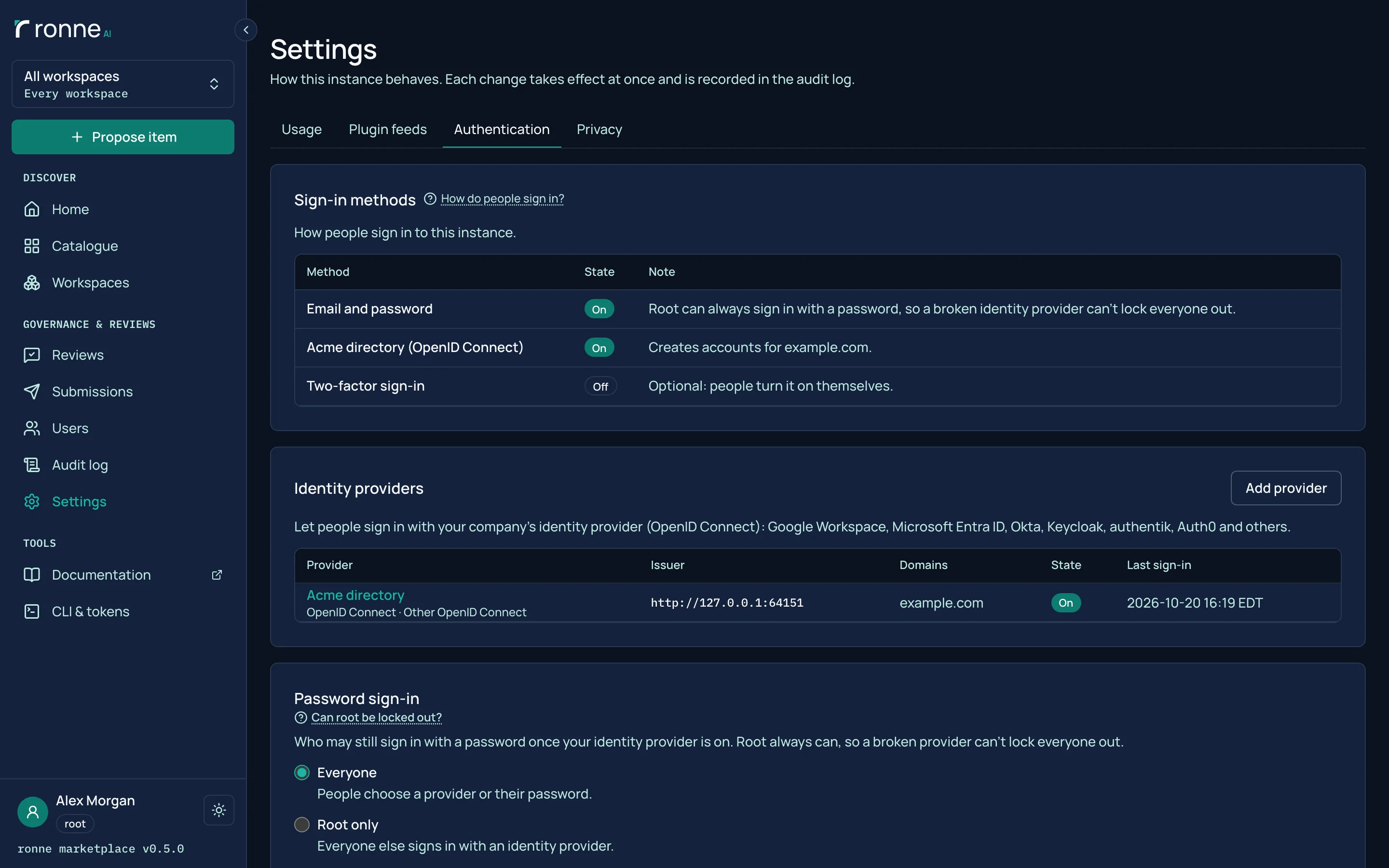
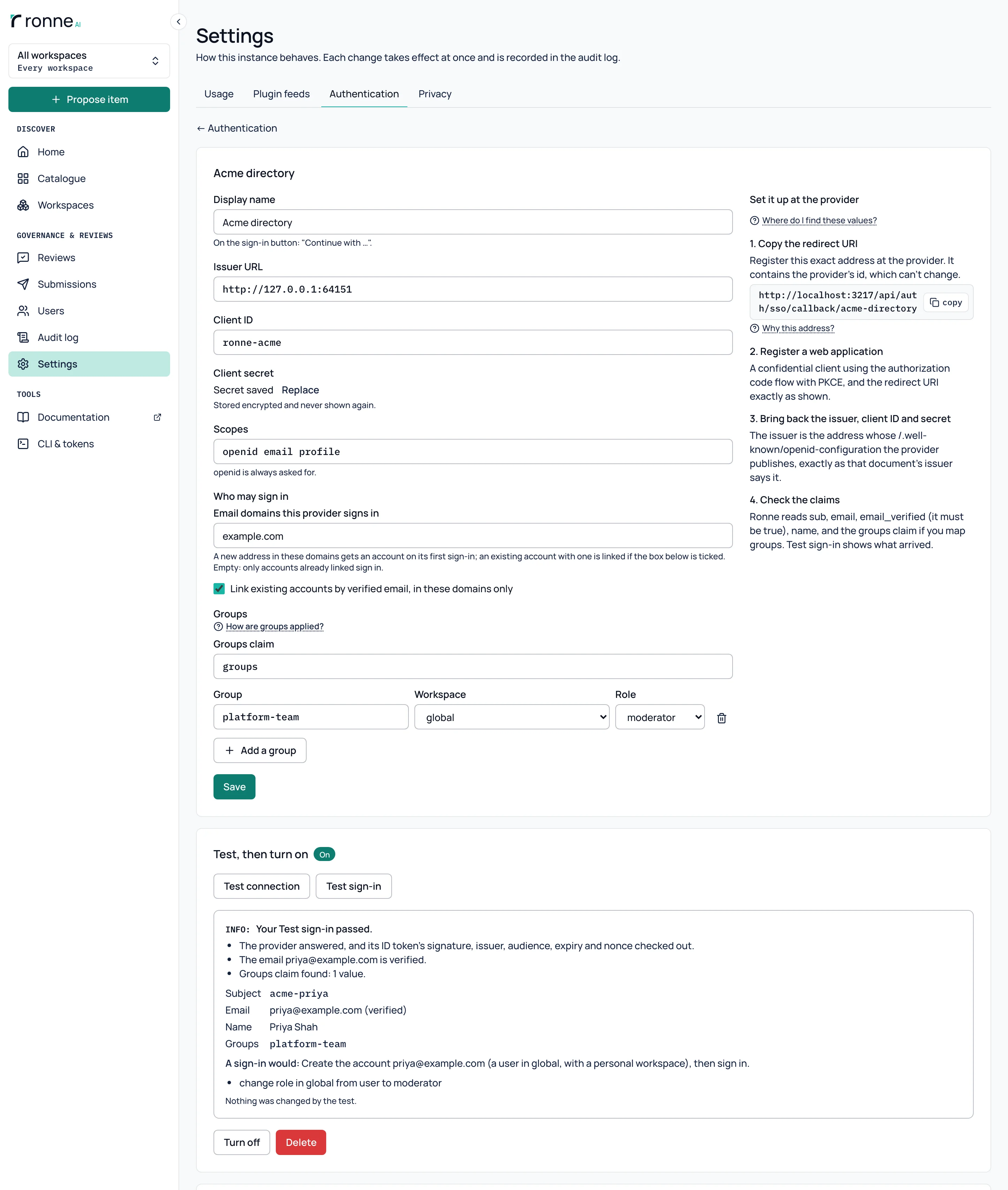
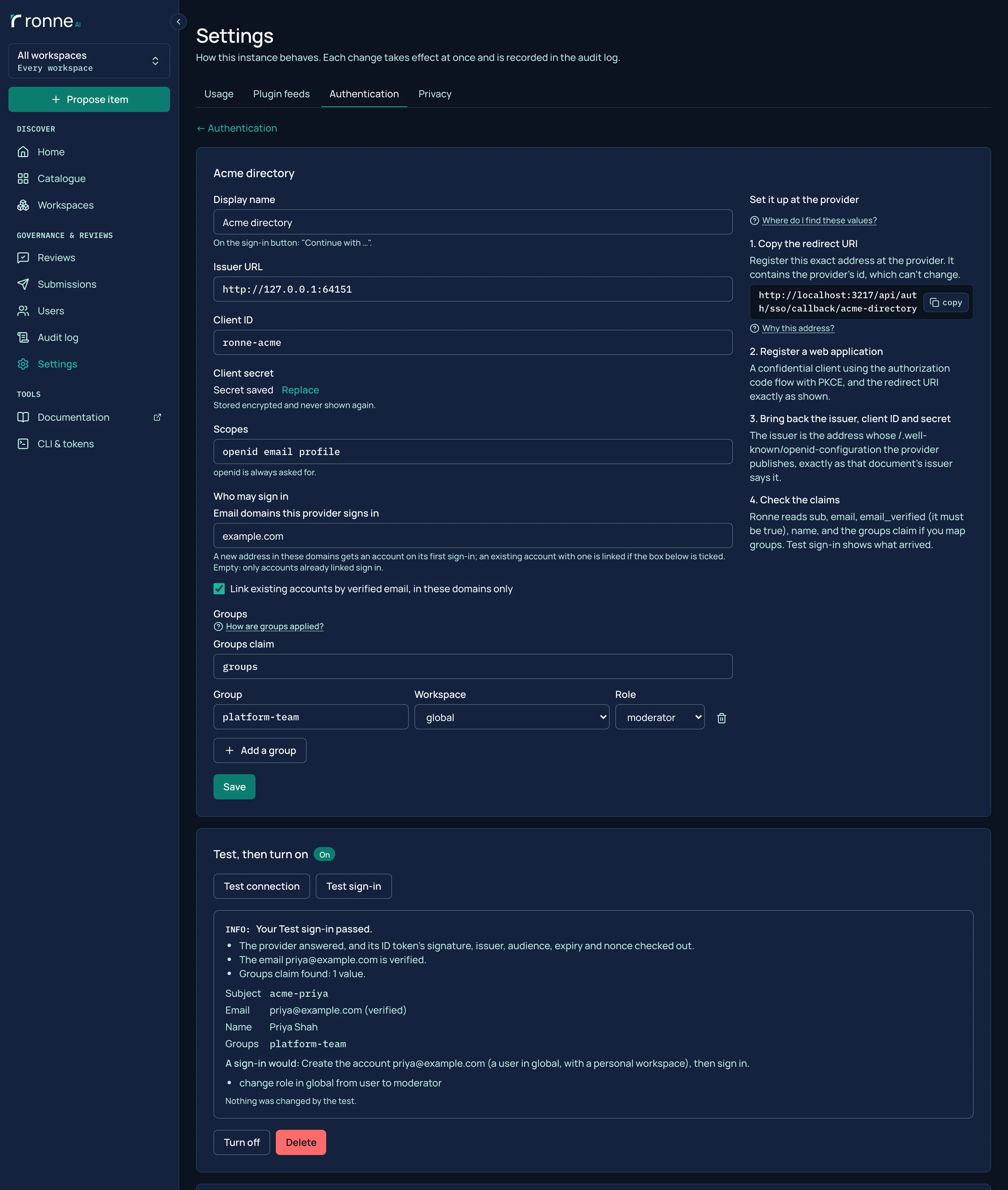
Connect your identity provider
Root connects the company's identity provider from the browser, with steps for each preset: Google Workspace, Microsoft Entra ID, Okta, Keycloak, authentik, Auth0 or any other OpenID Connect provider. An account is linked by its verified email, or created on first sign-in for the domains root chooses, with the role user, and the provider's groups can give workspace roles. Test sign-in shows what the provider sends and changes nothing. The provider here is a stand-in called Acme directory, not a real vendor's.
People choose how to sign in
The sign-in page offers the provider's button beside the email and password form. Under Root only, everyone else uses the provider, and rmk-server disable-sso gives every password back.
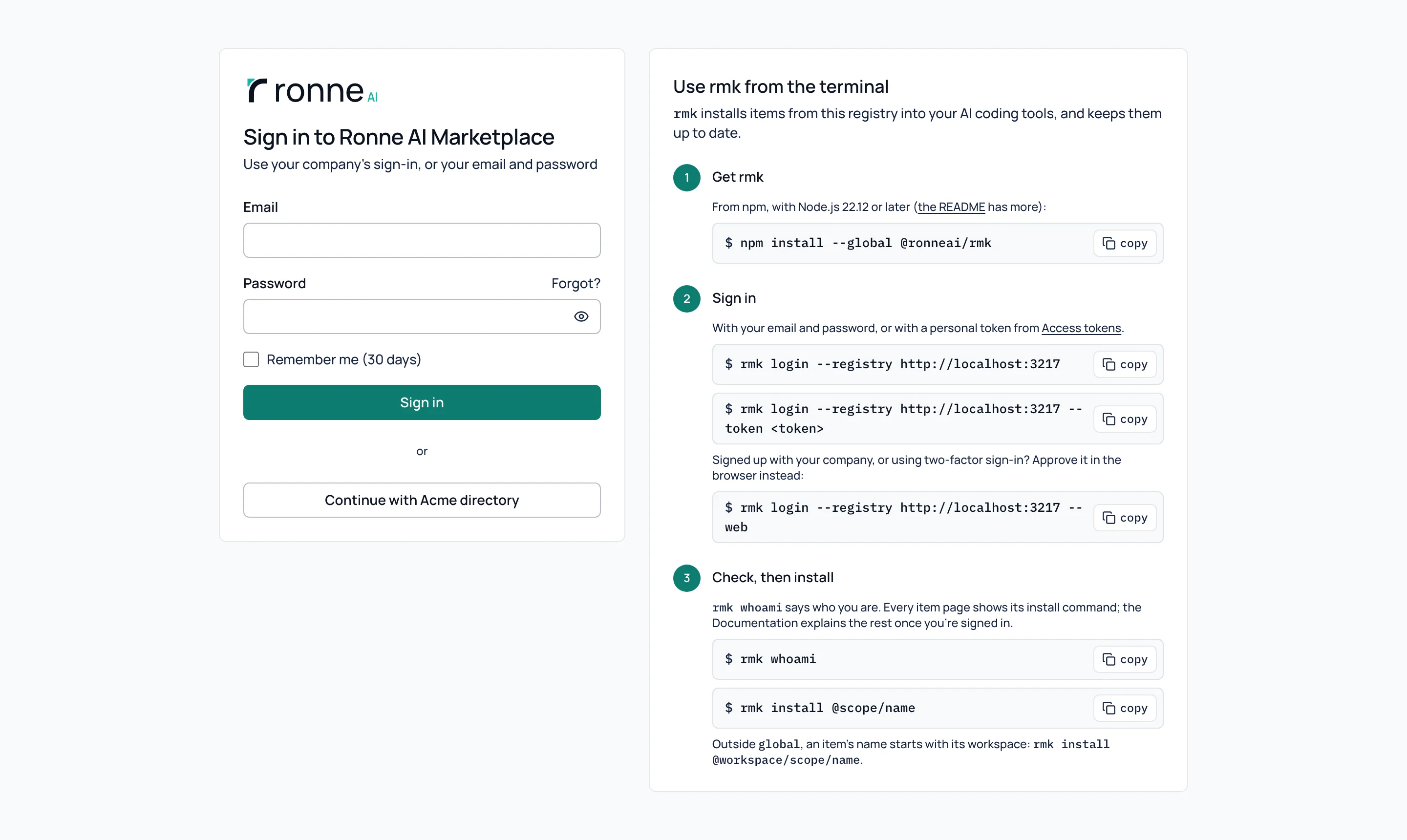
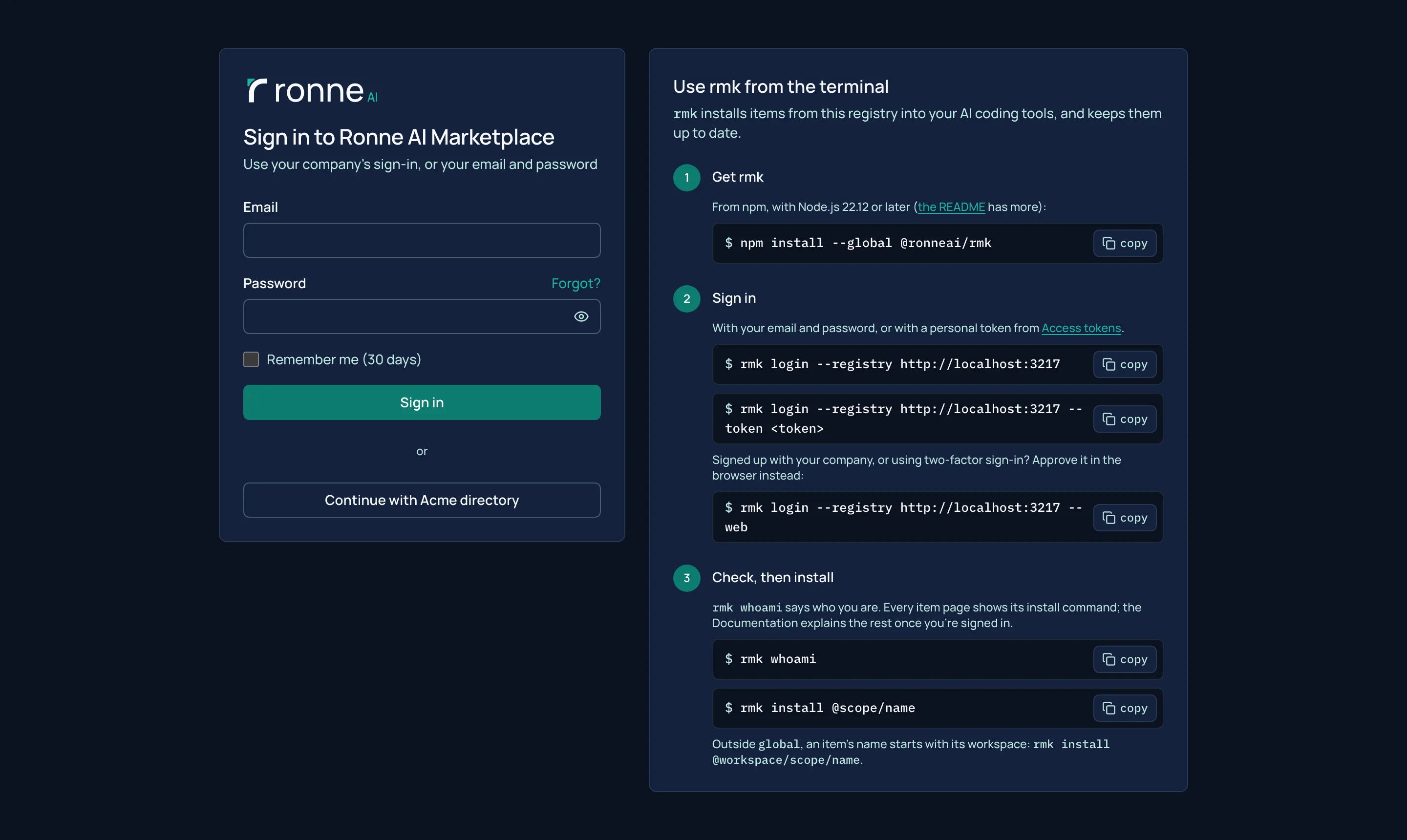
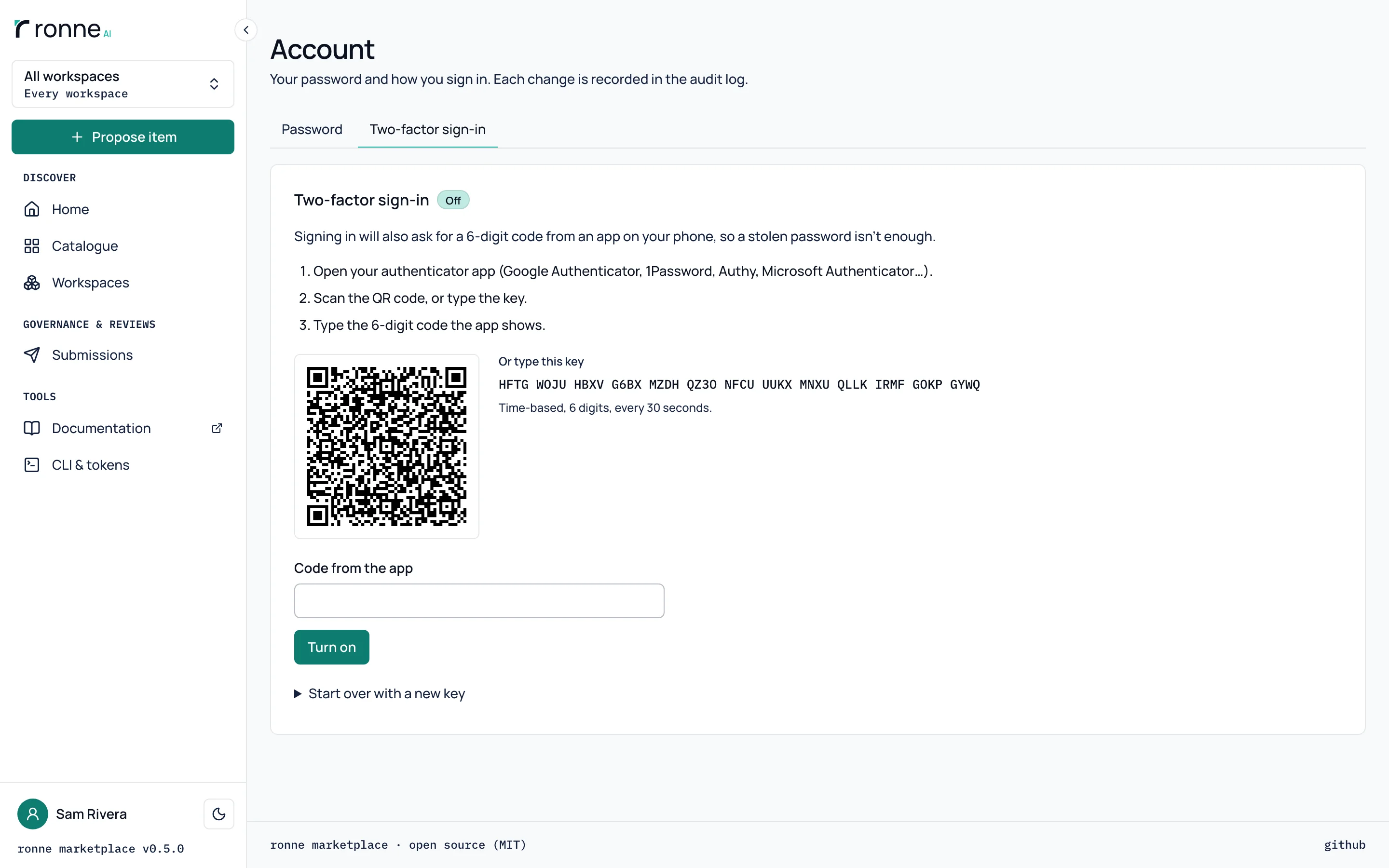
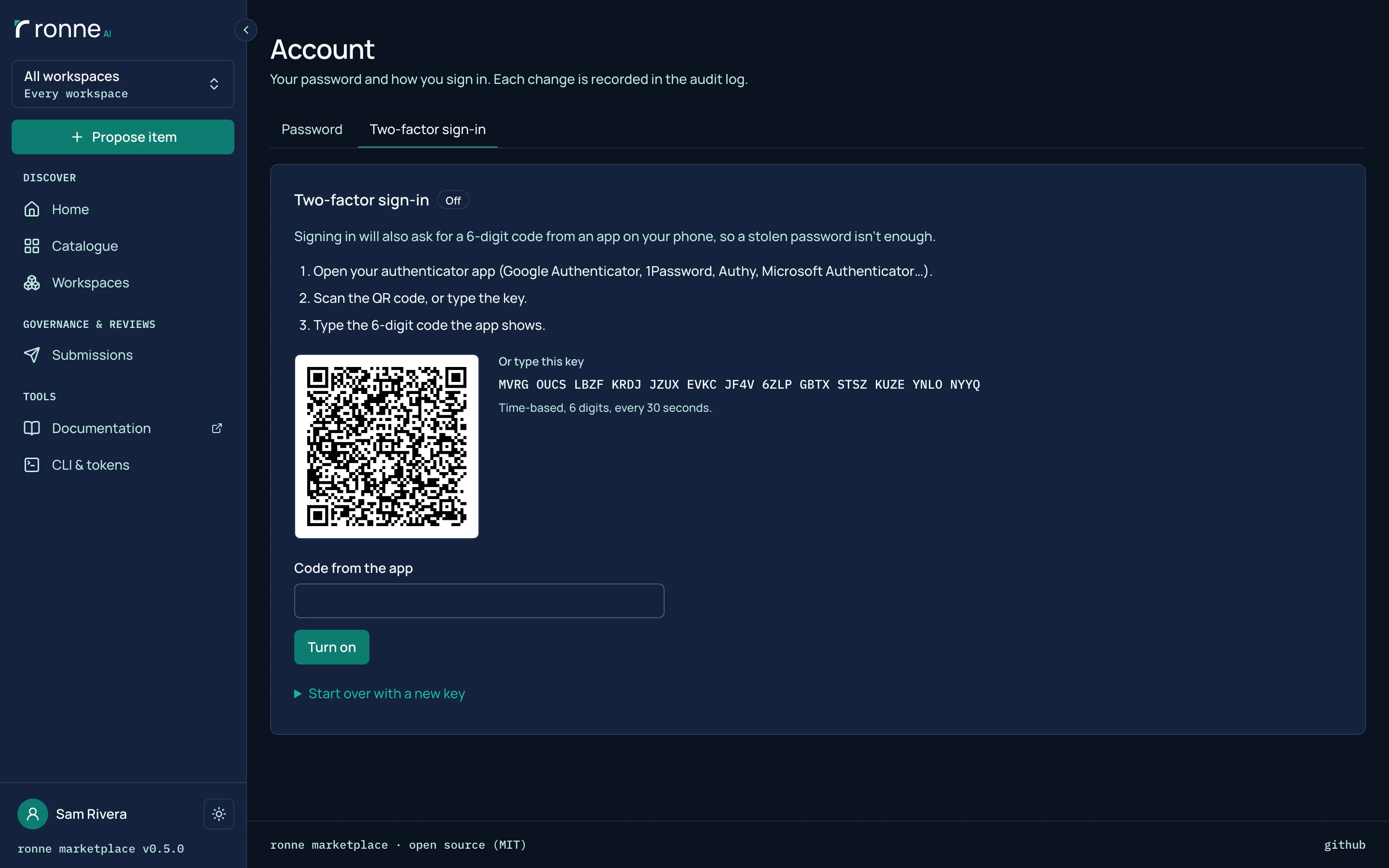
Two-factor sign-in
From their Account page, a person adds a second step to their password: a code from an authenticator app, with backup codes for a lost phone. Root decides whether it is optional, required for everyone, or required for roots and moderators.
rmk, approved in the browser
For people who sign in with a provider or a second step, rmk login --web prints a short code and an address. You approve it in the browser you already use for Ronne, and rmk gets a personal access token.
$ rmk login --web --no-browser --registry http://localhost:3217 --name "rmk on work-laptop"
To sign in, open  http://localhost:3217/device
and enter the code  YUAV-UP8M   (it expires in 10 minutes)
Waiting for the approval… (Ctrl-C to stop)
Logged in to http://localhost:3217 as [email protected].

$ rmk whoami
Priya Shah <[email protected]> (user) at http://localhost:3217 (from the default registry), with the token "rmk on work-laptop".Provisioning with SCIM
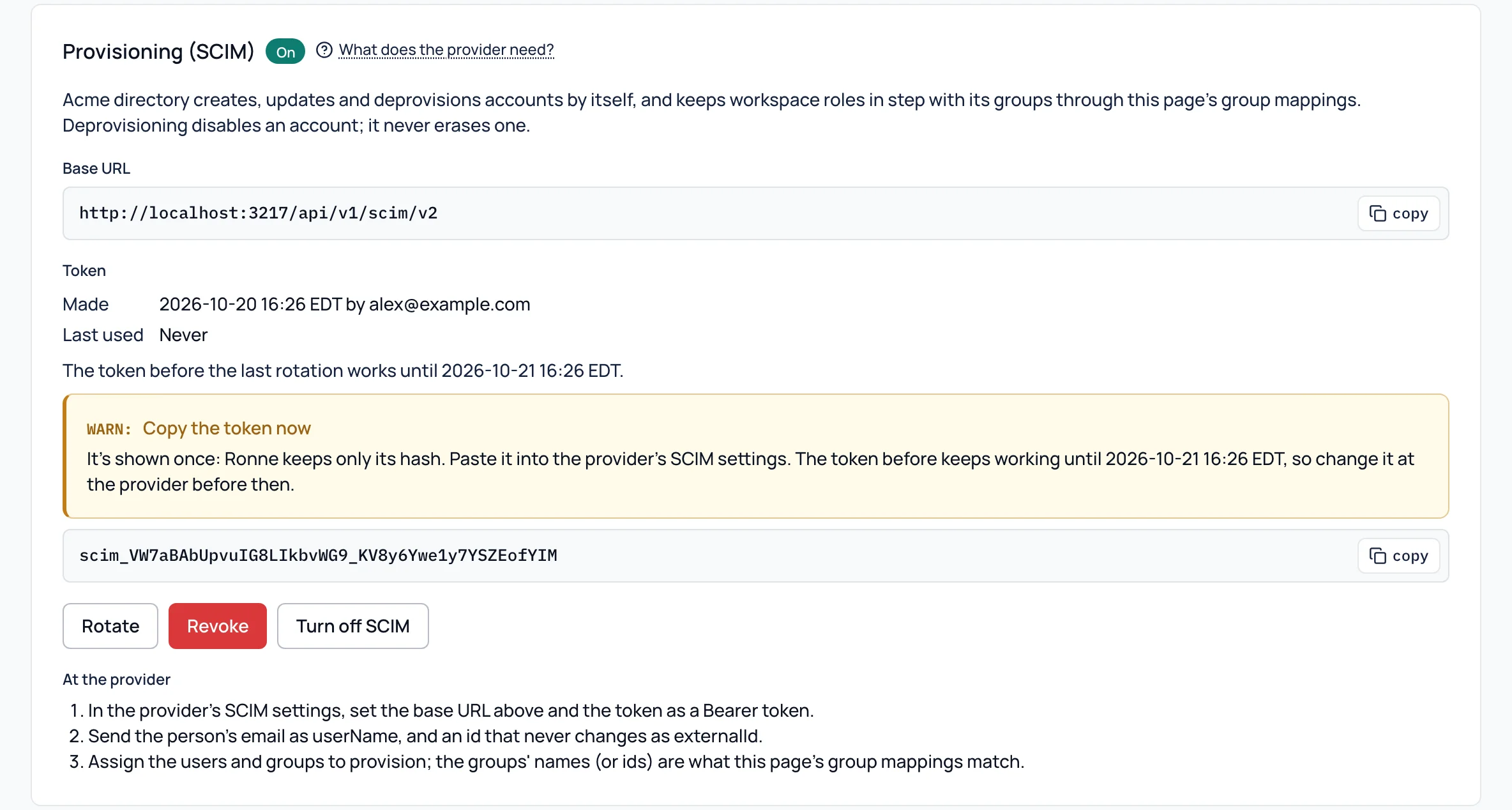
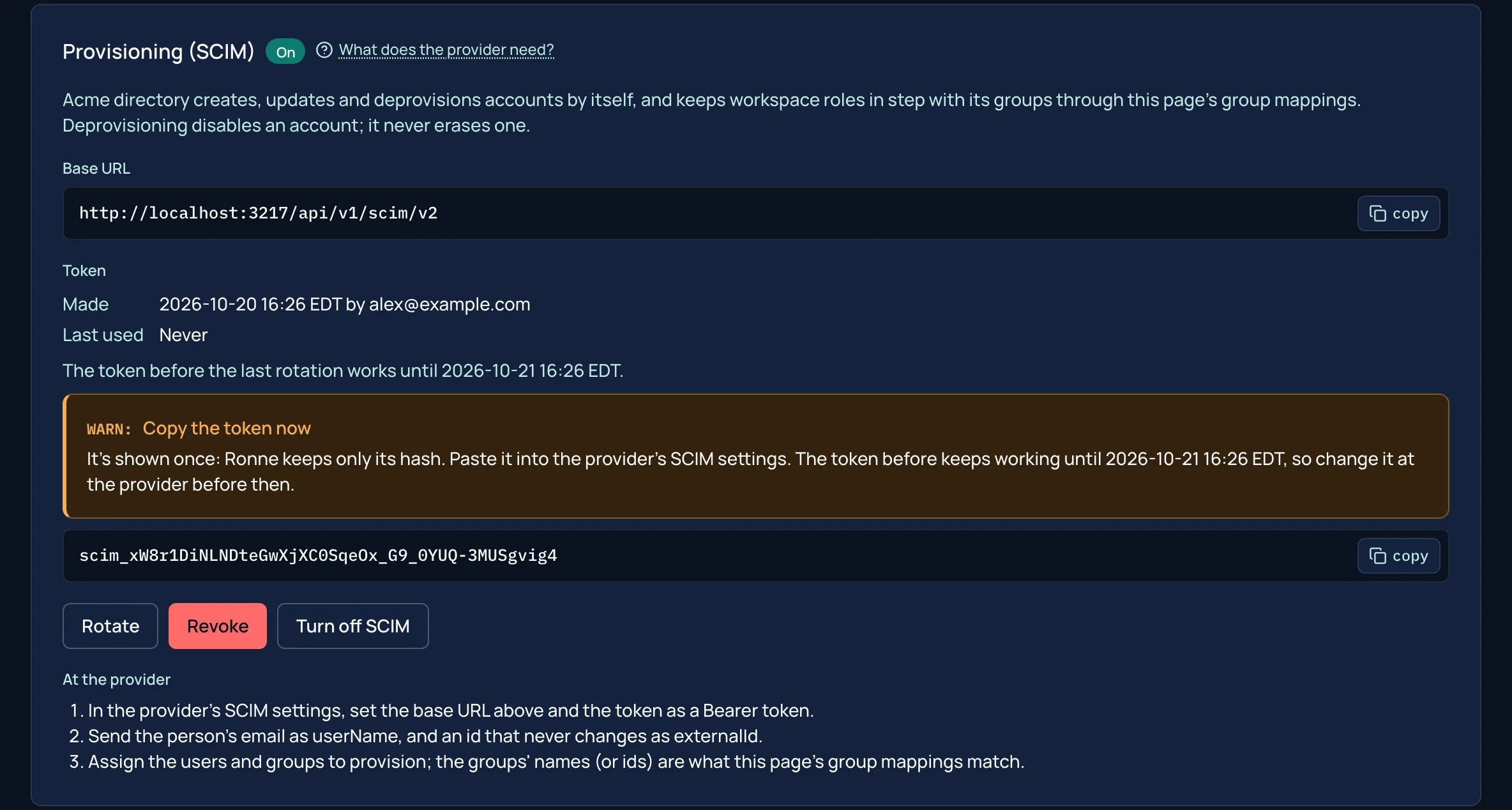
The identity provider creates, updates and removes accounts itself through SCIM Users and Groups, with a token for each provider, and its groups keep workspace membership in step. Removing someone disables their account and revokes their tokens and sessions. The token is shown once; this one is from the test instance.
Want to try it? Run the Docker image, or read the code.