Privacy and users
Screenshots of version 0.5.0, running on a new instance with the sample items from the repository. The people in them are sample accounts, and the usage counts are simulated. The identity provider in them is a stand-in made for tests.
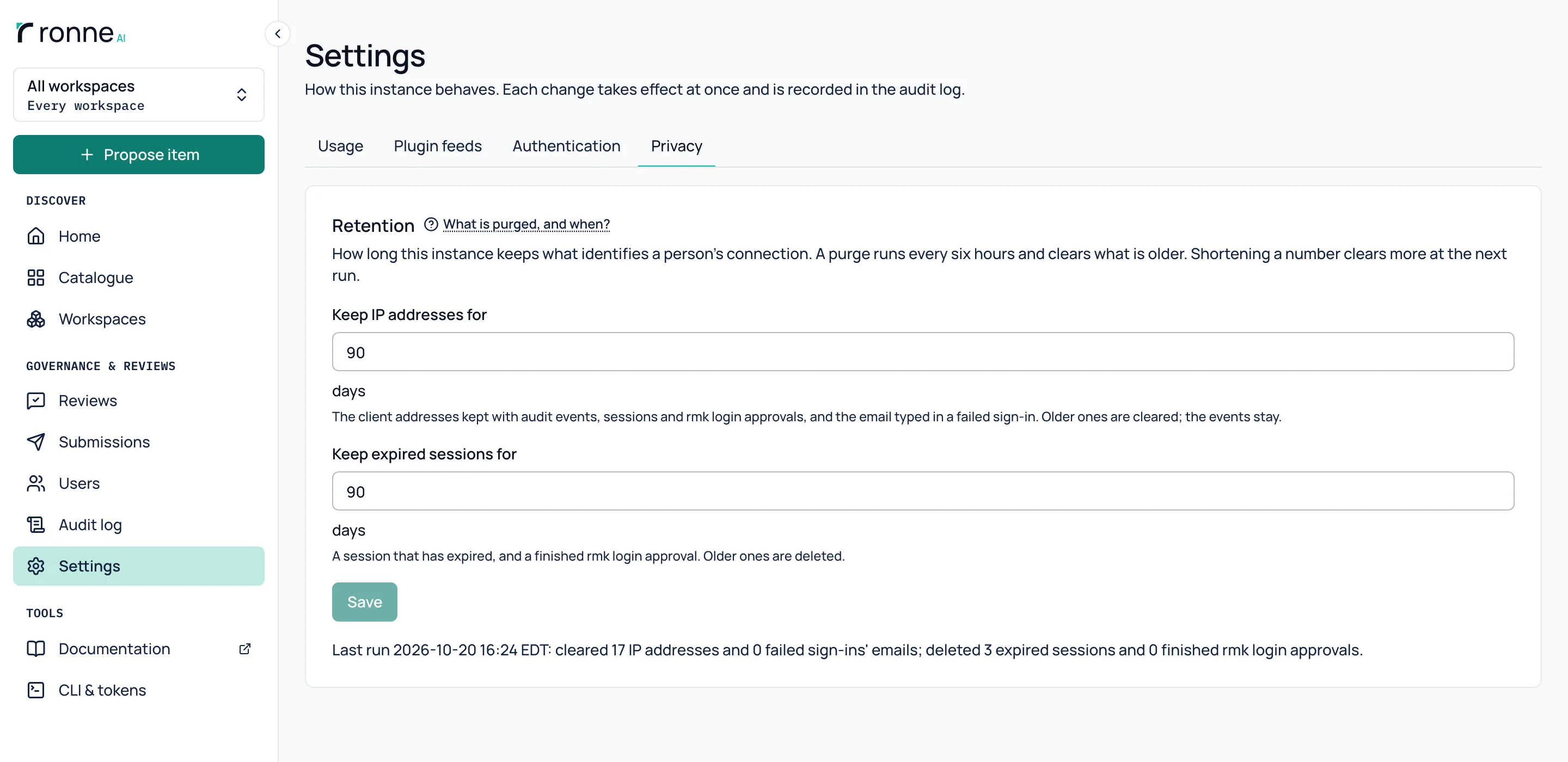
Keep IP addresses for a time you set
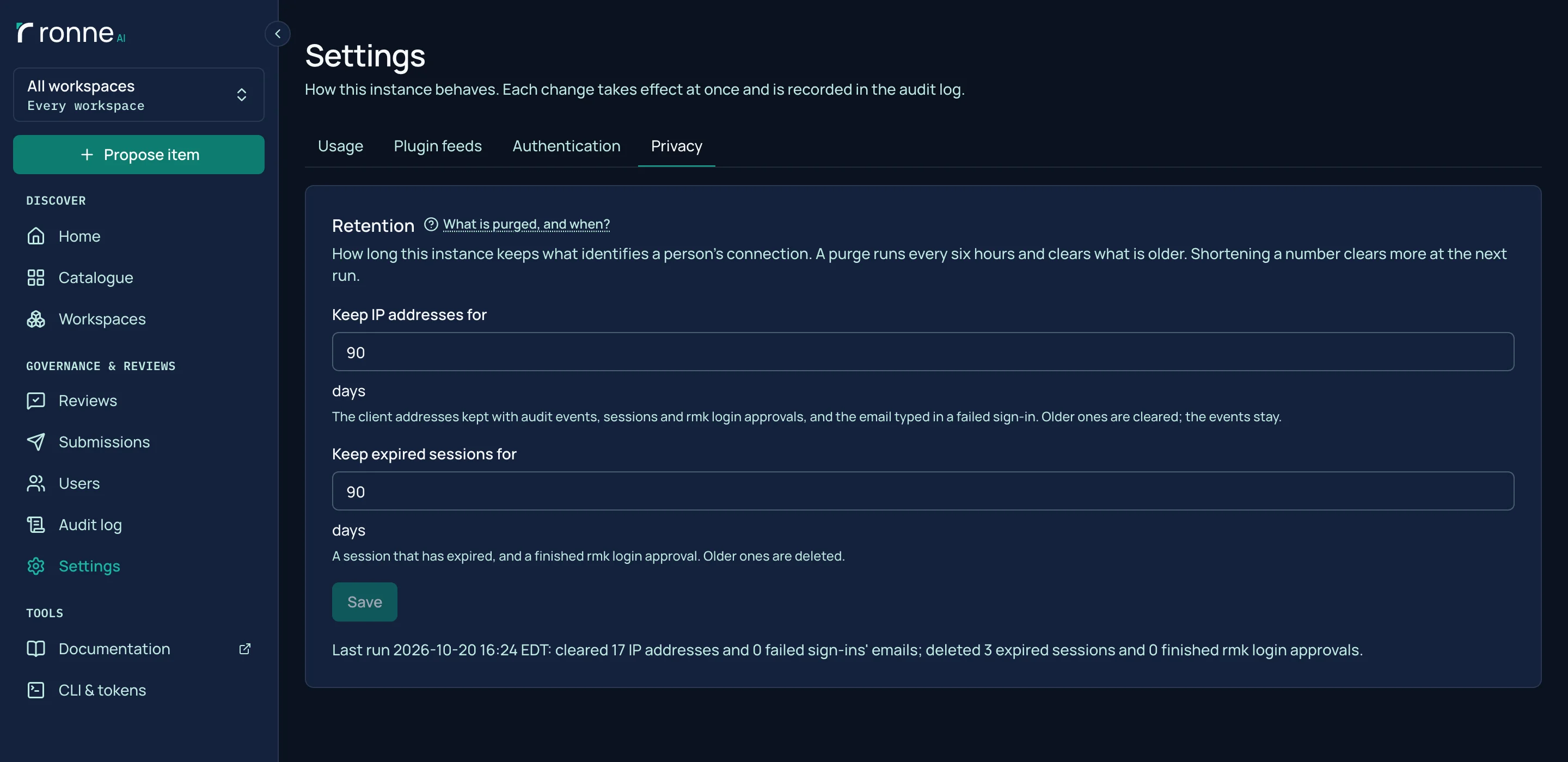
On Admin › Settings › Privacy, root sets how long IP addresses are kept in the audit log, sessions and device approvals, 90 days by default. The server purges what is older on a schedule.
The purge, from cron too
rmk-server purge runs the same purge from cron, and --dry-run counts what it would clear without changing anything.
$ pnpm run purge --dry-run
Counting what a purge would clear by the retention: IP addresses 90 days, expired sessions 90 days.
✓ IP addresses cleared: 17 (audit log 14, sessions 3, device grants 0)
✓ Failed sign-ins' emails cleared: 0
✓ Expired sessions deleted: 3
✓ Finished device grants deleted: 0
A dry run: nothing was changed.

$ pnpm run purge
Purging by the retention: IP addresses 90 days, expired sessions 90 days.
✓ IP addresses cleared: 17 (audit log 14, sessions 3, device grants 0)
✓ Failed sign-ins' emails cleared: 0
✓ Expired sessions deleted: 3
✓ Finished device grants deleted: 0Download your own data
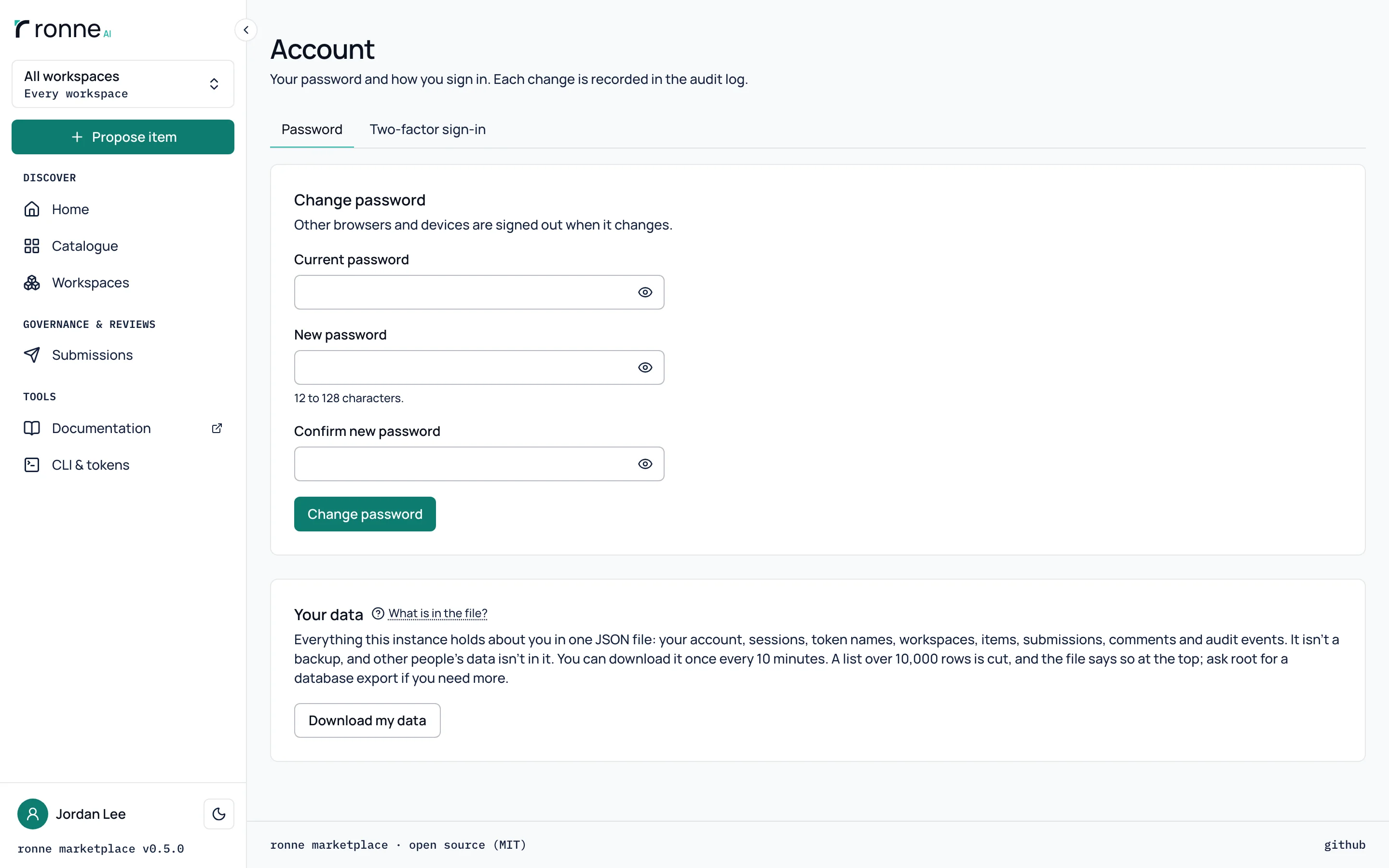
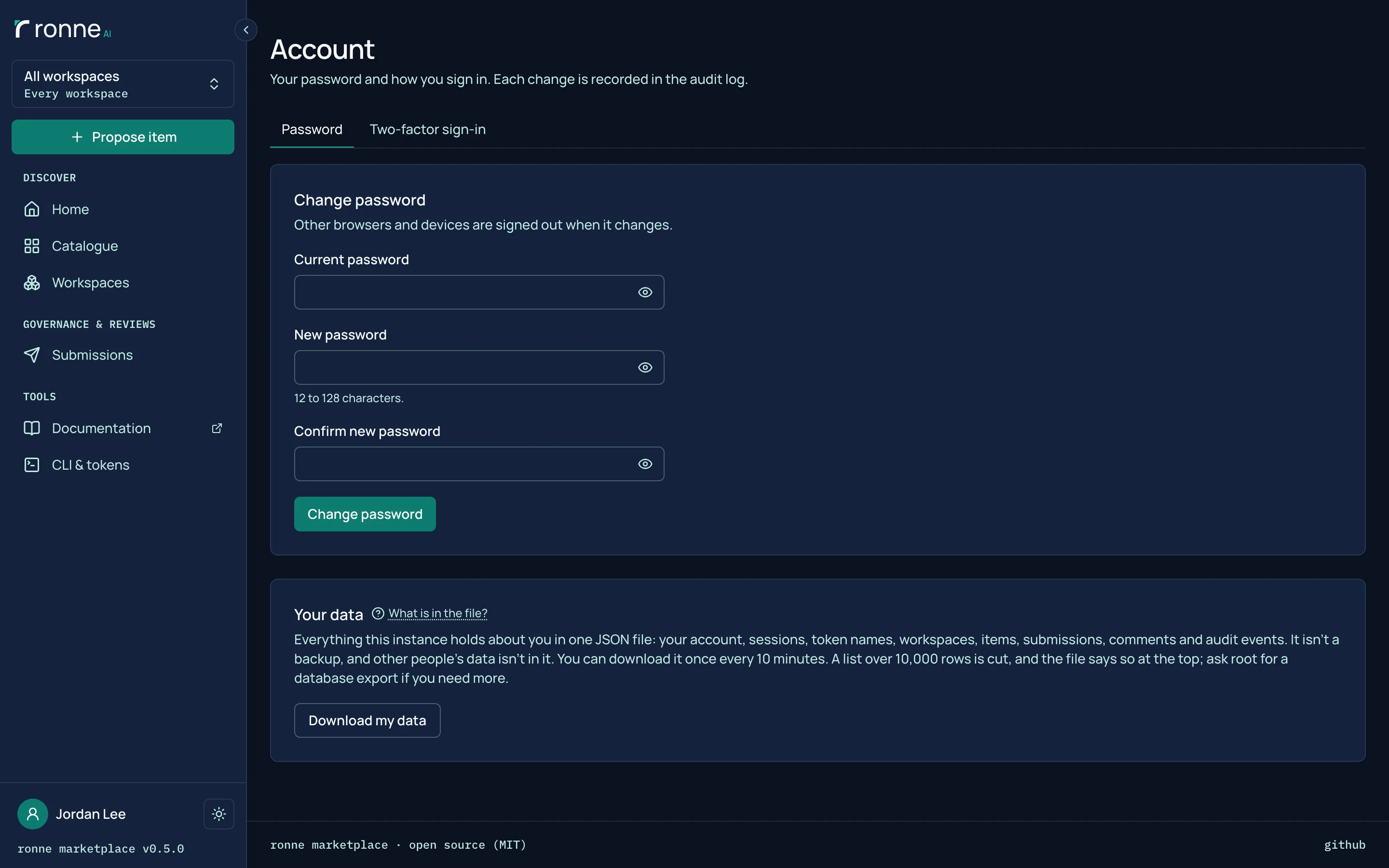
From their Account page, a person downloads one JSON file of what the instance holds about them: their account, sessions, token names, workspaces, items, submissions, comments and audit events. It is a record of the person, not a backup, and other people's data isn't in it. Root can make the file for someone who asked from that person's page.
Users, with their last sign-in
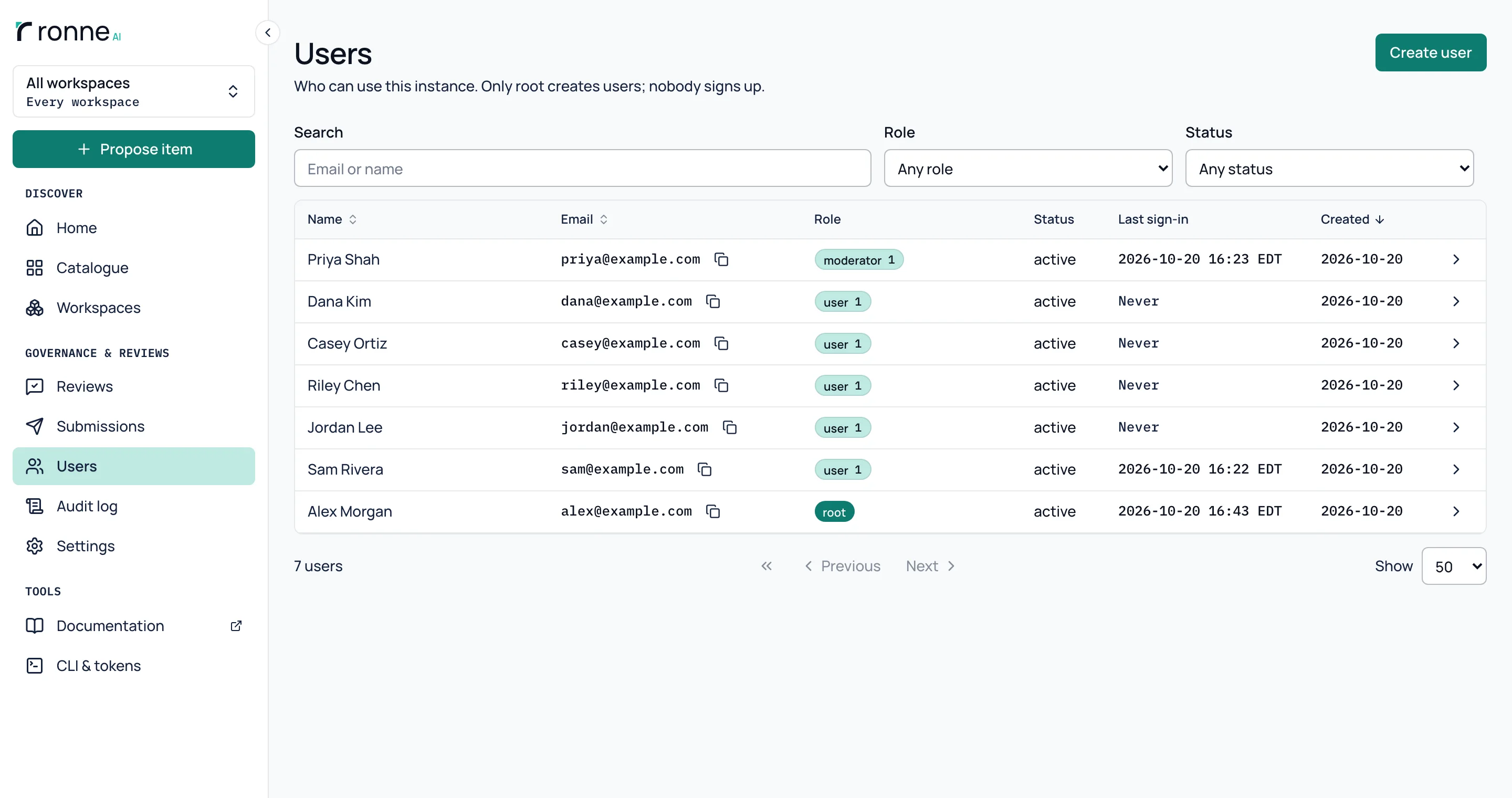
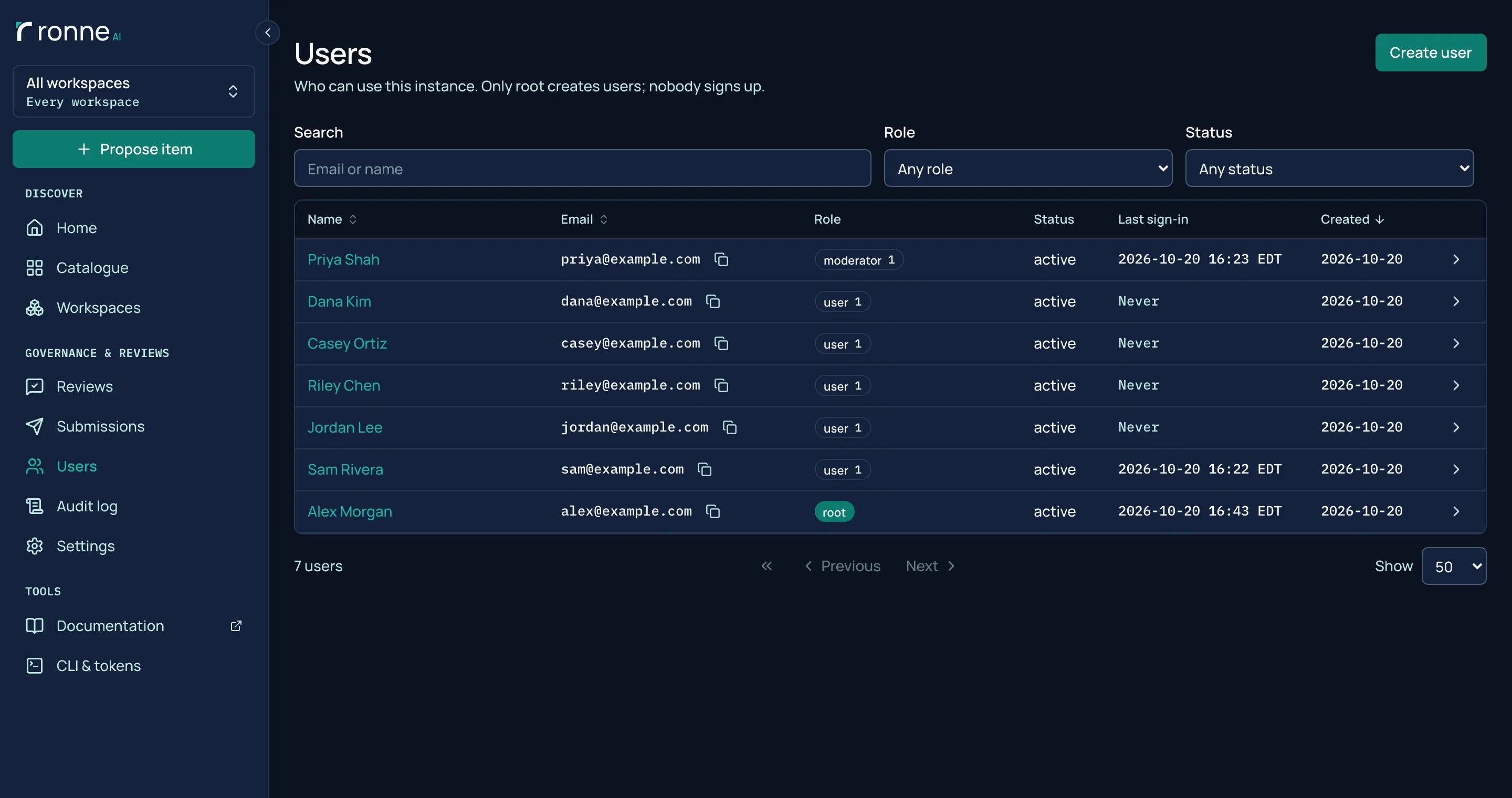
Root's list of users shows each person's last sign-in and a button to copy their email. It opens each person's page.
A page for each person
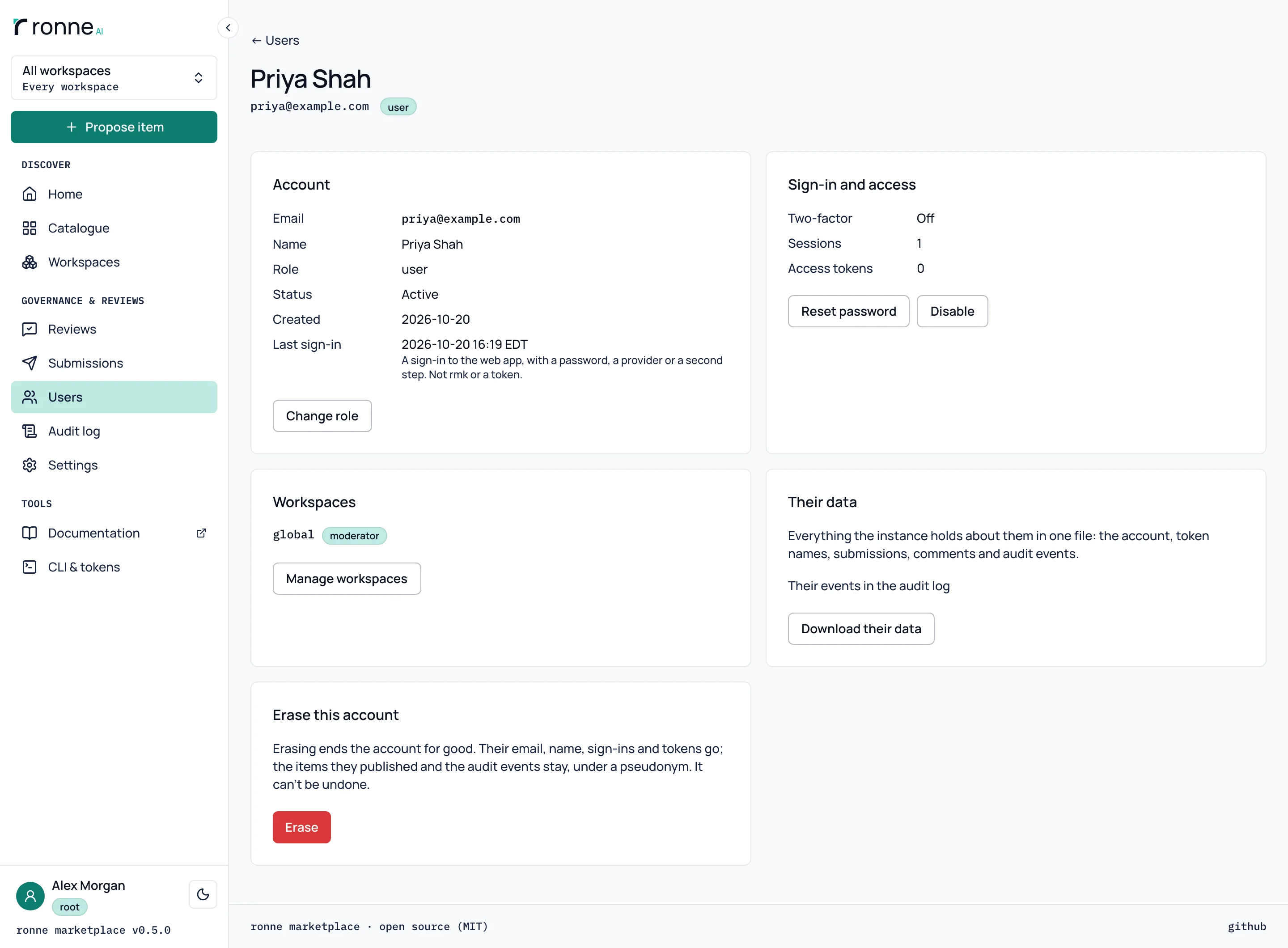
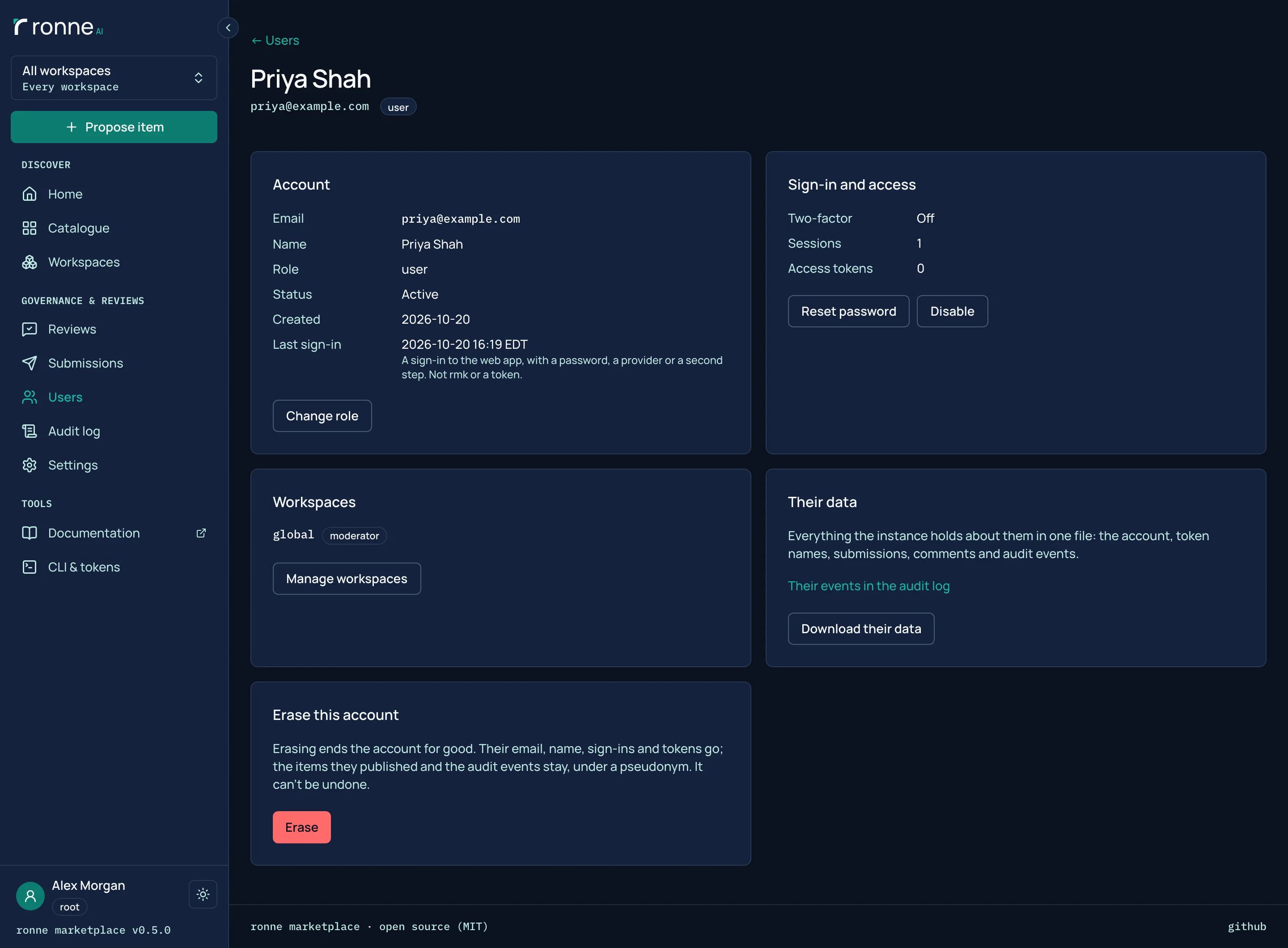
Root opens a person's page to see their role, status and last sign-in and to act: change the role, disable or enable the account, reset the password or two-factor step, download their data, or erase them. Erasing replaces their email and name with deleted-user-<id>, keeps what they published and can't be undone.
Want to try it? Run the Docker image, or read the code.